
How to Build an Invoicing Process That Gets Every Job Billed
Unbilled work is the most expensive bookkeeping problem you can have. A miscoded expense costs you a correction. A job that never gets invoiced costs you the whole job. And in a trades business doing a few million a year, with service calls and construction projects running at the same time, work slips through more often than most owners want to believe. The crew finishes, everyone moves to the next job, and the invoice sits in someone's head until it doesn't.
The fix isn't reminding people to bill more often. The fix is a process where an invoice can't depend on anyone's memory. That process has four parts: a master list of every job, a rule for who enters what, a routine for getting it into your accounting system, and a monthly check that proves nothing slipped. This article walks through how I build that in client businesses.
Quick Guide: Building Your Invoicing Process
The short version, for anyone who wants to skip this article (or maybe you just need a refresher). The rest of the article below explains the how and why behind each these steps.
Create a master job list. One central list of every job with money attached, service or construction, no exceptions. Use a field management program like Jobber or ServiceTitan, or a shared Excel file in Google Drive or OneDrive. [Grab the free template above.]
Have the person closest to the work enter the job. Your estimator enters what they quote, your dispatcher enters what they book. Data goes in once, at the source.
Mark how each job bills. Paid up front (sales receipt), invoiced on completion, or billed on a schedule like time and materials or percent of completion.
Set the trigger. Completion-billed jobs get flagged ready to process by field or office staff. Schedule-billed jobs go on your admin's weekly or month-end checklist. Nothing bills on memory.
Run a daily entry routine. Your admin enters everything flagged or scheduled into QuickBooks, invoices and sales receipts, then sends the customer their copy. Same routine on the last day of every month, so nothing misses the period.
Write it down and train your staff. Put the procedures in a manual, walk your team through it, and teach through mistakes instead of quietly fixing them.
Reconcile monthly. Compare your master job list total to QuickBooks. Match means every job got billed. A gap means go find the job that slipped.
Why jobs go unbilled in the first place
Nobody decides to skip billing a job. It happens because the process has holes, and the same five holes show up in almost every trades business I look at.
No defined trigger. Billing happens "when the owner gets to it," which means evenings, weekends, or whenever the guilt builds up. Anything that runs on when someone gets to it will eventually not get done.
Job information lives in the field. The details needed to build the invoice sit in a foreman's texts, a glovebox notepad, or the owner's head. By the time someone sits down to bill, half of it has to be reconstructed from memory.
Change orders agreed on verbally. The customer asked for an extra hose bib while your guy was there, he installed it, and no one wrote it down. The base contract gets billed and the extra never does. Multiply that across a year and you've given away real money.
No single list of every active job. Work lives in a quoting app, an email thread, and a whiteboard. You can't bill every job when no one can say what every job is.
Billing runs through one person. Usually the owner. When that person gets busy, and they're always busy, invoices wait. The business's cash flow shouldn't depend on its busiest person finding a quiet hour.
If these sound like your shop, keep reading. Each one gets closed by a piece of the system below.
Start with a master job list
Every dollar that's supposed to come into your business needs to be recorded in one central list. Service calls, construction jobs, warranty work you're charging for, that side job the owner quoted on a napkin. If a customer will pay you money for it, it goes on the list. No exceptions, because the exceptions are exactly the jobs that don't get billed.
This list does two jobs. Day to day, it's where invoicing starts. And at month end, it becomes the thing you reconcile your accounts receivable to. That second job is the one most businesses miss, and it's the reason the list has to be complete. You can't prove every job got billed if some jobs never made the list in the first place.
What goes on it: the customer, the job, the amount, whether it's been invoiced, and whether it's been paid. I've put together a basic spreadsheet with the fields I recommend tracking. Download it free here
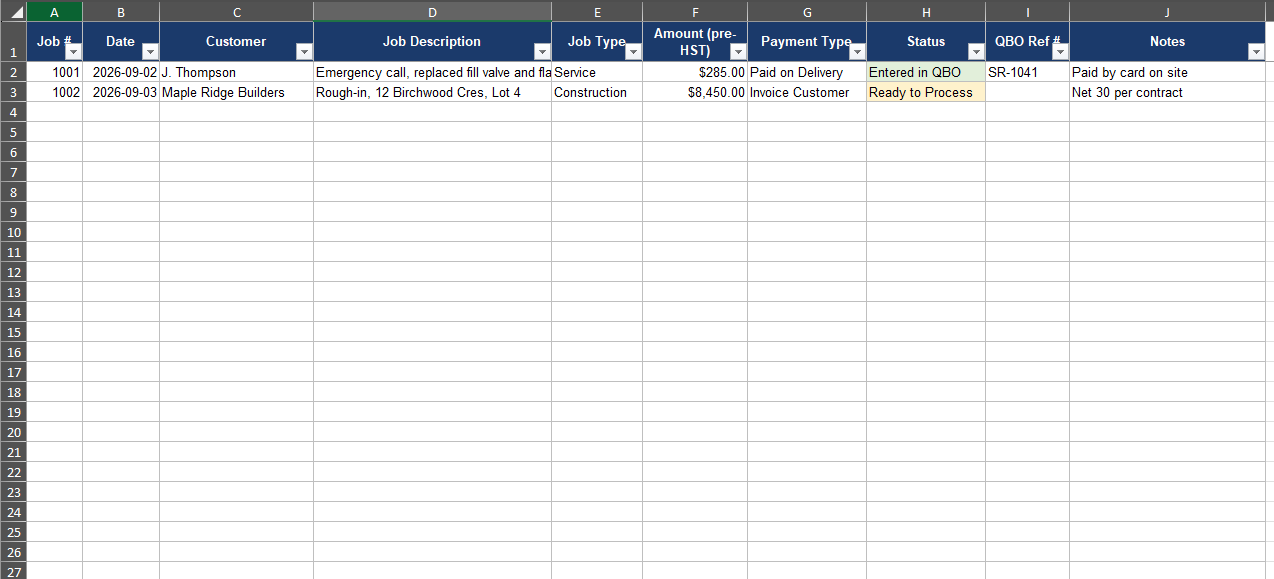
The master job list template: one row per job, with dropdowns for payment type and status so your admin can see at a glance what still needs to be entered into QuickBooks. Download it free here
Enter the data once, at the source
A rule I hold to when building any accounting system: data gets entered once, by the person closest to it. Your estimator builds the quote, so your estimator enters the job. Your dispatcher books the service call, so your dispatcher records it. Nobody should be copying job details from one place to another, because every copy is a chance for something to get dropped or typed wrong.
That rule is also what makes delegation work. The people talking to your customers and arranging the work are the natural owners of the job list. Accounting doesn't create the records. Accounting processes them.
For this to work with several people entering jobs, you want a database driven application, meaning a field management or dispatching program built to handle multiple users working in it at once. Which brings us to software.
The software question
Programs like Jobber and ServiceTitan are built for exactly this. Jobs, quotes, scheduling, and invoicing live in one system, your whole team works in it, and the invoice data flows to your accounting software through a built-in sync. If you can justify the cost, they're the cleanest answer.
They are expensive though, and I won't pretend otherwise. So there's the old fashioned way: an Excel spreadsheet. Put it in Google Drive or OneDrive and you've got a central job list every staff member can access and update. It won't schedule your crews or text your customers, but it does the one thing this article cares about. It gives you a complete record of every job with money attached.
I've seen well run businesses on both paid programs and simple systems like Excel or even paper. The tool matters less than the rule that no job exists outside the list.
Two ways revenue comes in
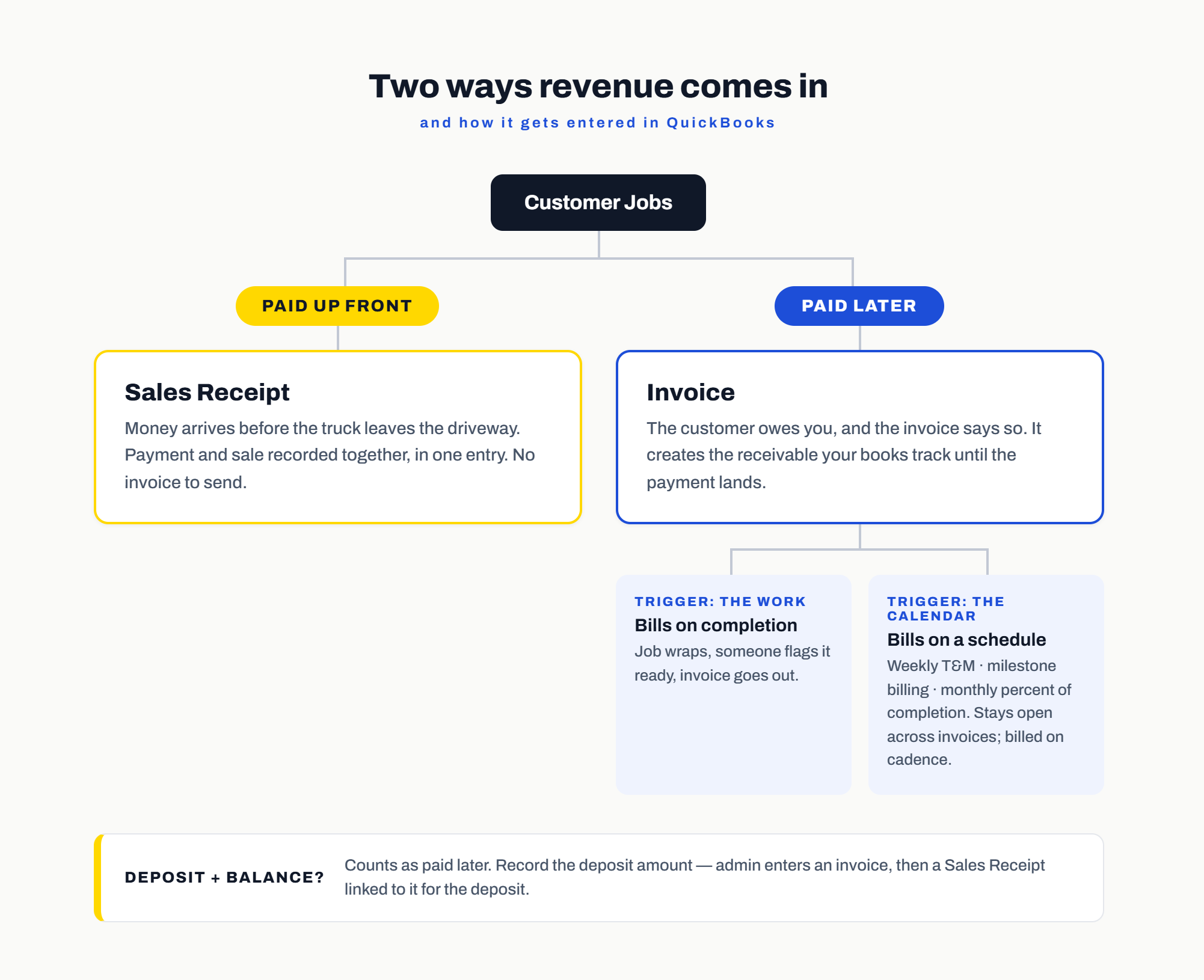
Before we get to the accounting system, one distinction that drives everything downstream. Every dollar you record arrives in two ways: the customer pays up front, or the customer pays later. Some customers pay a deposit and the rest on completion, and for our purposes those count as paid later. What matters is how each one gets entered into QuickBooks.
Paid up front means a sales receipt. Your plumber fixes a broken toilet, the customer taps their card before the truck leaves the driveway, and there's no invoice to send because the money already arrived. Payment and sale get recorded together in one entry (via a Sales Receipt in QuickBooks Online).
Paid later means an invoice. The work is done or partly done, the customer owes you, and the invoice is the document that says so. It creates the receivable your books will track until the payment lands.
If the customer pays a deposit up front, record the deposit amount in your master job list. Admin will use this data to record both an invoice and then the deposit (via the Receive Payment function in QuickBooks) for the deposit amount. Tip: For QuickBooks users, the reason you enter it via Receive Payment instead of Sales Receipt is because Receive Payment allows you to enter a payment against an invoice, the sales receipt doesn’t and thats an important distinction to understand.
There's a wrinkle in the paid later bucket, though. Not every job bills on completion. Plenty of construction businesses bill on a schedule instead: time and materials invoiced weekly or monthly, milestone billing as each phase wraps, or percent of completion invoiced at the end of every month. For these jobs, the trigger isn't the work finishing. It's the calendar.
Your system needs to handle that, and the template that we referenced above needs a small change to serve these businesses well. Add a Billing Method column so schedule-billed jobs are marked as such. These jobs behave differently on the list: they stay open across multiple invoices, and instead of waiting for someone to flag them ready, your admin bills them on a set cadence. If you bill percent of completion on the last day of the month, "run progress invoices for all percent of completion clients" becomes a line on your admin's month-end accounting checklist. Weekly time and materials billing works the same way, as a line on the weekly routine.
Every job on your master list still lands in one of the two entry types, a sales receipt or an invoice. The person entering the job marks which one it is, and how it bills. Next, I’ll discuss how to get this information into QuickBooks.
Getting data into QuickBooks
For jobs where invoicing is required
If you're on Jobber or ServiceTitan, invoices are created in the field software and sync over to QuickBooks. Your process there is making sure the sync is set up correctly and someone owns checking that it worked, which sounds obvious until you meet a business where it quietly stopped working in two months ago.
If you're running the Excel or paper method, you need a trigger, a defined way for staff to tell accounting that an invoice is ready to go out. Two options I set up for clients:
A Request for Invoice form. An internal form your field or office staff submit to accounting with the job details. Accounting processes the requests, enters the invoices in QuickBooks, and sends them out.
A "Process Invoice" column in the master job list. Even simpler. Staff mark the job as ready, and that flag is the trigger.
Either way, the routine is the same. Daily, ideally, your admin works through everything flagged for processing, enters the invoices into QuickBooks, and emails or mails a copy to the customer. The customer getting their invoice while the work is fresh does more for your collection speed than any reminder sequence, but that's a topic for its own article.
For jobs where the customer paid upon completion
Back to the customer who paid before the truck left. Whoever enters that job into the master list marks it paid on delivery. Then, on a daily or weekly cycle, your admin reviews the list and enters a sales receipt in QuickBooks for every job carrying that flag. This fits into the same daily rhythm as invoice processing, and I'm writing a separate article on building a daily revenue checklist for your admin team that covers the full routine.
Tip: One timing detail that matters more than it looks: run this process on the last day of the month, or the morning after. Every sale belonging to the month needs to be in QuickBooks before you close it, otherwise your month end numbers are wrong before you even start.
A trick for the Excel crowd
If you're handy with Excel, you can get some of the automation the expensive software offers without the subscription. QuickBooks can import transactions from a formatted file, so you can build a macro that generates a daily revenue import file straight from your master job list. Your admin runs the macro, imports the file, and enters a whole day of sales receipts or invoices in one pass instead of keying them one at a time.
It takes some setup, and it's not for everyone. But I've seen this cut a daily entry routine from thirty minutes to five, and it removes the typos that come with manual entry.
Making the system stick
A process on paper isn't a process. Two things make this one hold up after the novelty wears off.
Train your staff, then keep training them. Write the procedures down in an accounting system manual, have your field and admin staff read it, and walk them through it in person. Then expect mistakes, because there will be mistakes. When you find one, don't quietly fix it and move on. Show the person how to do it correctly. Fixing it yourself is faster today but teaching them is faster every day after that, and the time you invest in training comes back to you multiplied.
Reconcile the master job list to QuickBooks every month. This is the check that proves the system worked. You're confirming that every record in your master job list has a matching record in your accounts receivable ledger. The fastest way is to reconcile the totals: does the dollar amount in your master list match what QuickBooks says? If yes, you're done in five minutes. If not, work through it one day at a time, comparing the two systems until you find where they split.
And if you're on Jobber or ServiceTitan, don't skip this step just because the sync is supposed to handle it. I still recommend periodic reconciliations to confirm the two systems match. When they don't, that's your early warning that there's a crack in the system that needs tightening, and finding it in a monthly reconciliation beats finding it at year end.
Getting help building your accounting system

Everything above is a system your business can run without our bookkeeping services. Building it, though, is a project, and it's one we do for construction and trades businesses as part of our accounting systems setup service. This is what we’ll do:
We map how your operation runs today, keep what's working, build procedures for what isn't
Write the training manual for your staff
Deliver the training, and stick around for 30 days of support while the new routines settle in.
If you want help setting up these systems or all your accounting systems, lets talk.
And if you want a better handle on what your numbers should be telling you once they're reliable, grab my free guide: The 5 Numbers You Need to Know in Your Contracting Business.